Users on a Growth plan or above can access the Data View and Data Classification features. See our pricing page for more details.
Data Views Overview
Data views allow you to manage data access for a group of users within a single Mixpanel project. Project Owners and Admins can create and edit data views and determine access for privacy and productivity purposes.Use Cases
Teams or Functional Areas You have a Mixpanel project that contains all of your data. Engineering, Marketing, Support, and various product teams all use Mixpanel on a regular basis. Each team can have a data view filtering for relevant data. Separate Customer Data from Internal User Data Create a data view for customer data by excluding data tracked by your internal users/employees. Create another data view for just your internal users. By doing this, you no longer have to remember to add cohorts or filters each time you create a Board, Report, or Cohort. Regions or Geo-Based Teams For a global organization with multiple offices, regional teams might need access to data from only their region. E.g., the marketing team in the Asia region would like to target only Asian customers and should not have access to US customers’ data. Verified Data Only Teams that want to closely manage events that are included in all their analysis can either include or exclude the specific events in the data view’s definition. Specific Platform/App Version Engineering or Product teams working on a specific version can use data views to target specific versions of the app or platform version(s) to be included in the analysis.Create a data view
To create a new data view, navigate to the Data Views tab in Project Settings and click the + Create Data View button in the top-right of the data views settings. Finally, add a name and description to your data view and click Save. Important: the name of the data view cannot exceed 255 characters.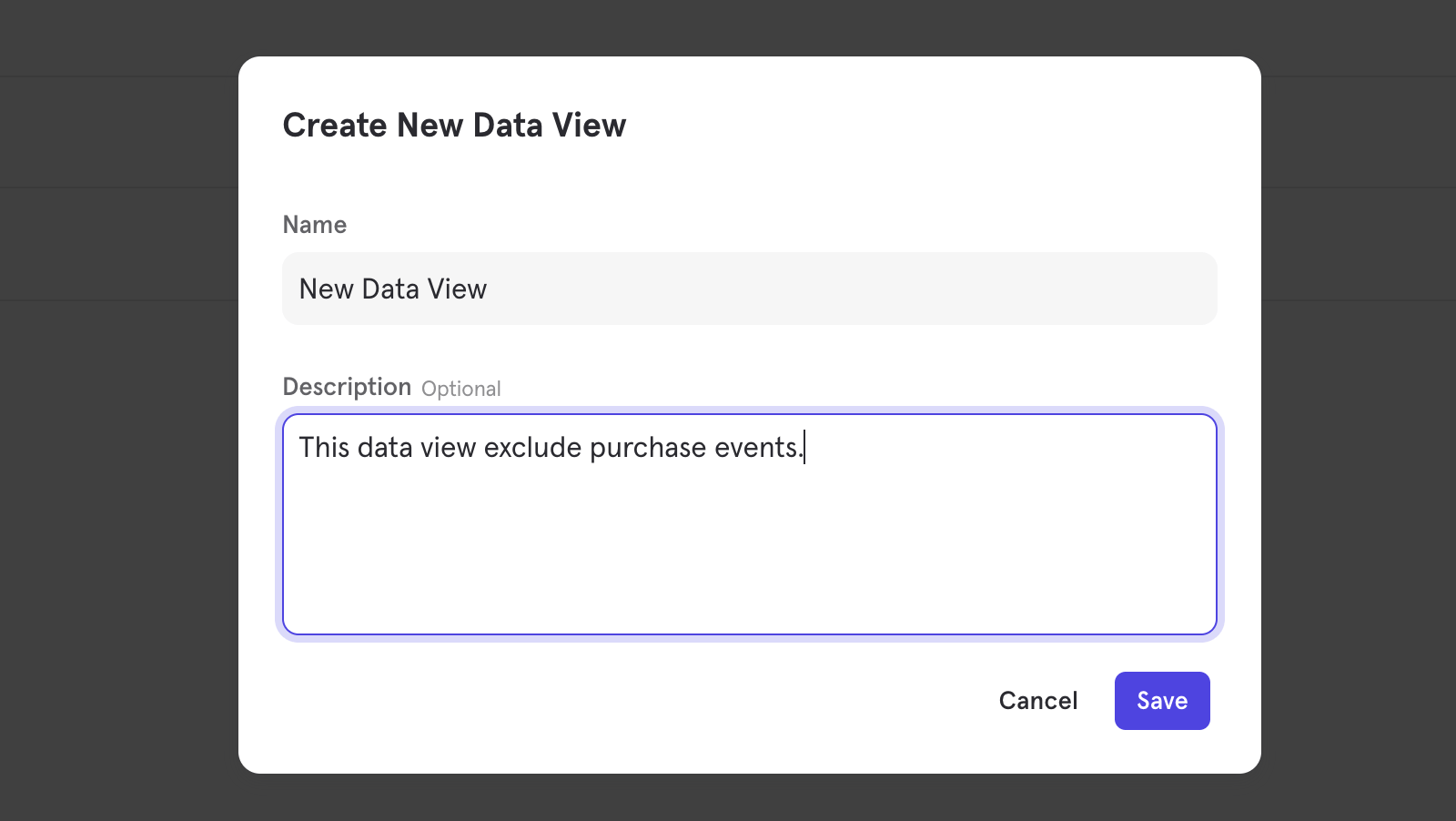
Manage Data Views
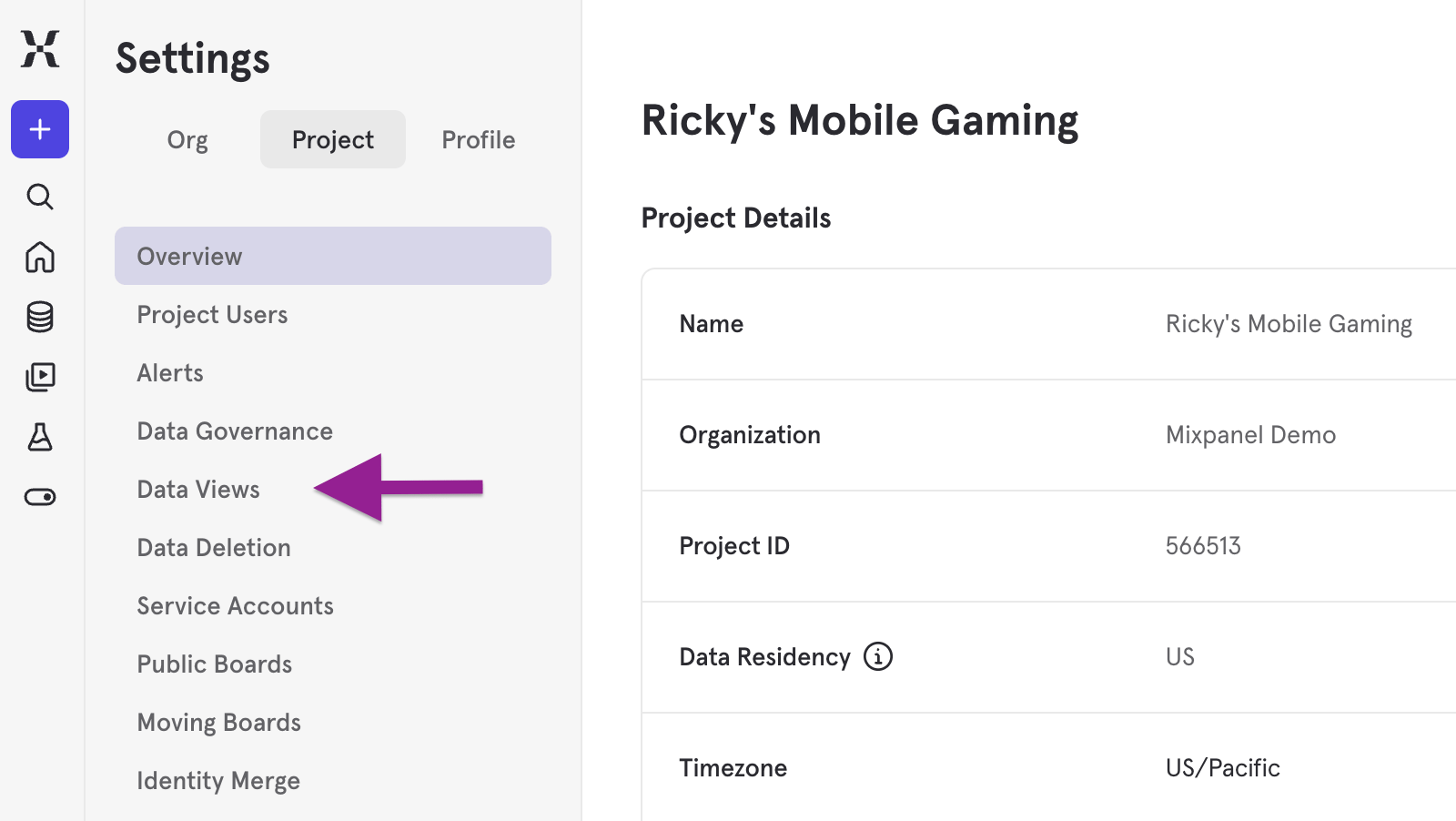
Navigate to Project Settings and select ‘Data Views’ from the left-hand menu.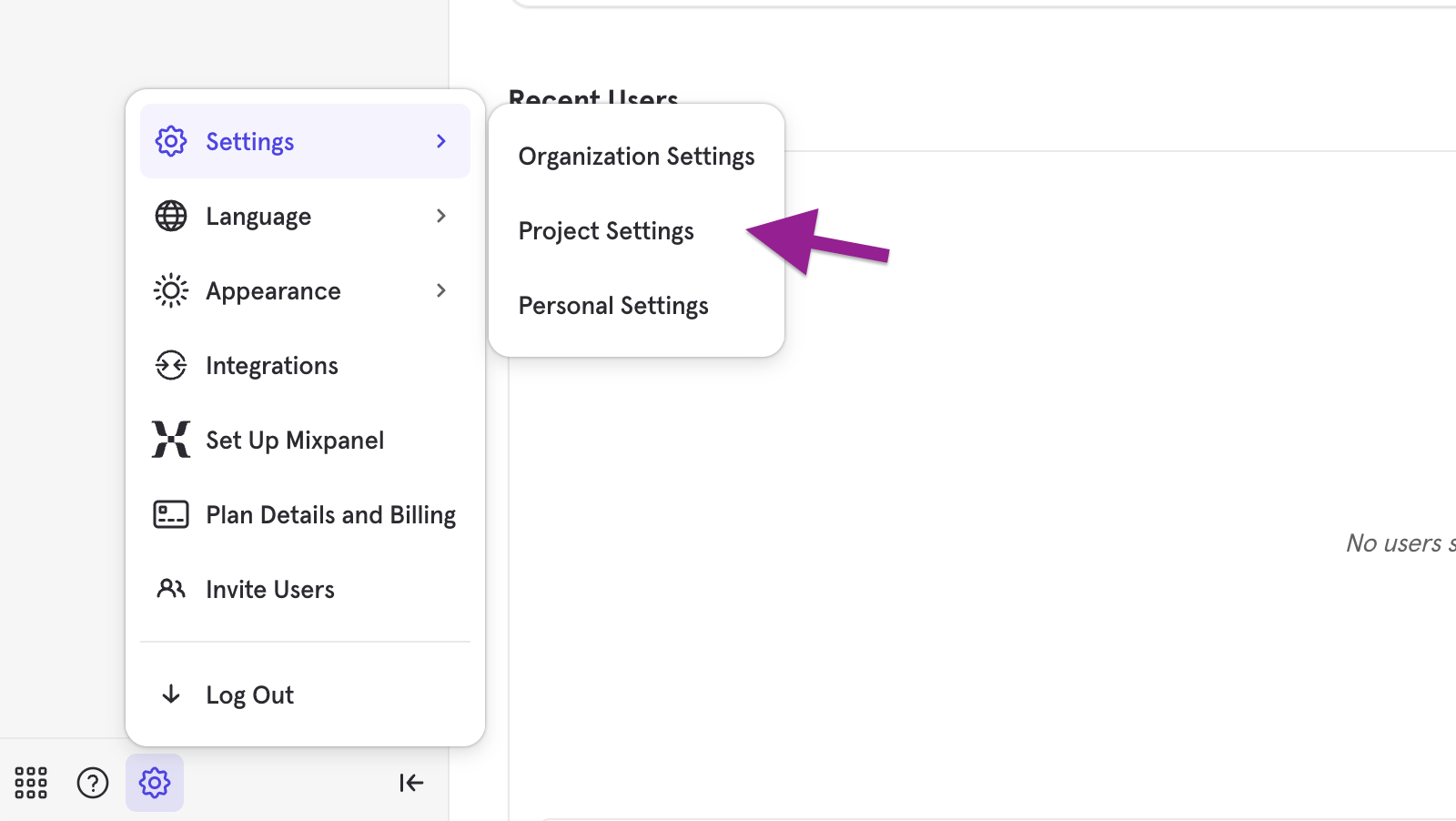
Default Data View
All projects have a global data view called “All Project Data”. This data view has no filters and gives users access to all the data in a project. The global data view in a project is equivalent to a Mixpanel project without data views. The “All Project Data” view starts as the default data view of a project for any new users added to the project. You can decide which data view you want to set as default by checking the box next to the workspace’s name and selecting Set Default.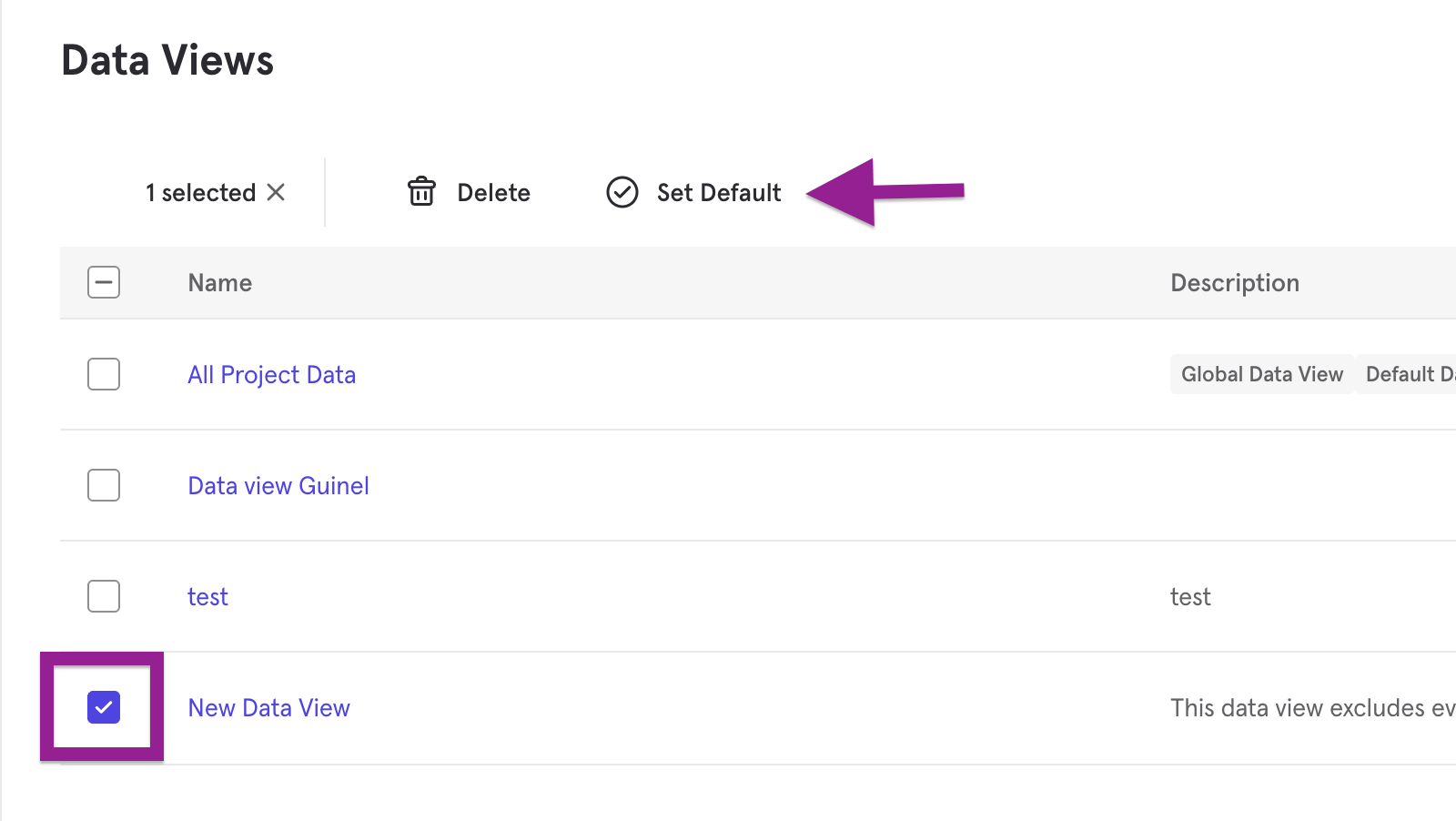
Manage Visibility and Editing Controls
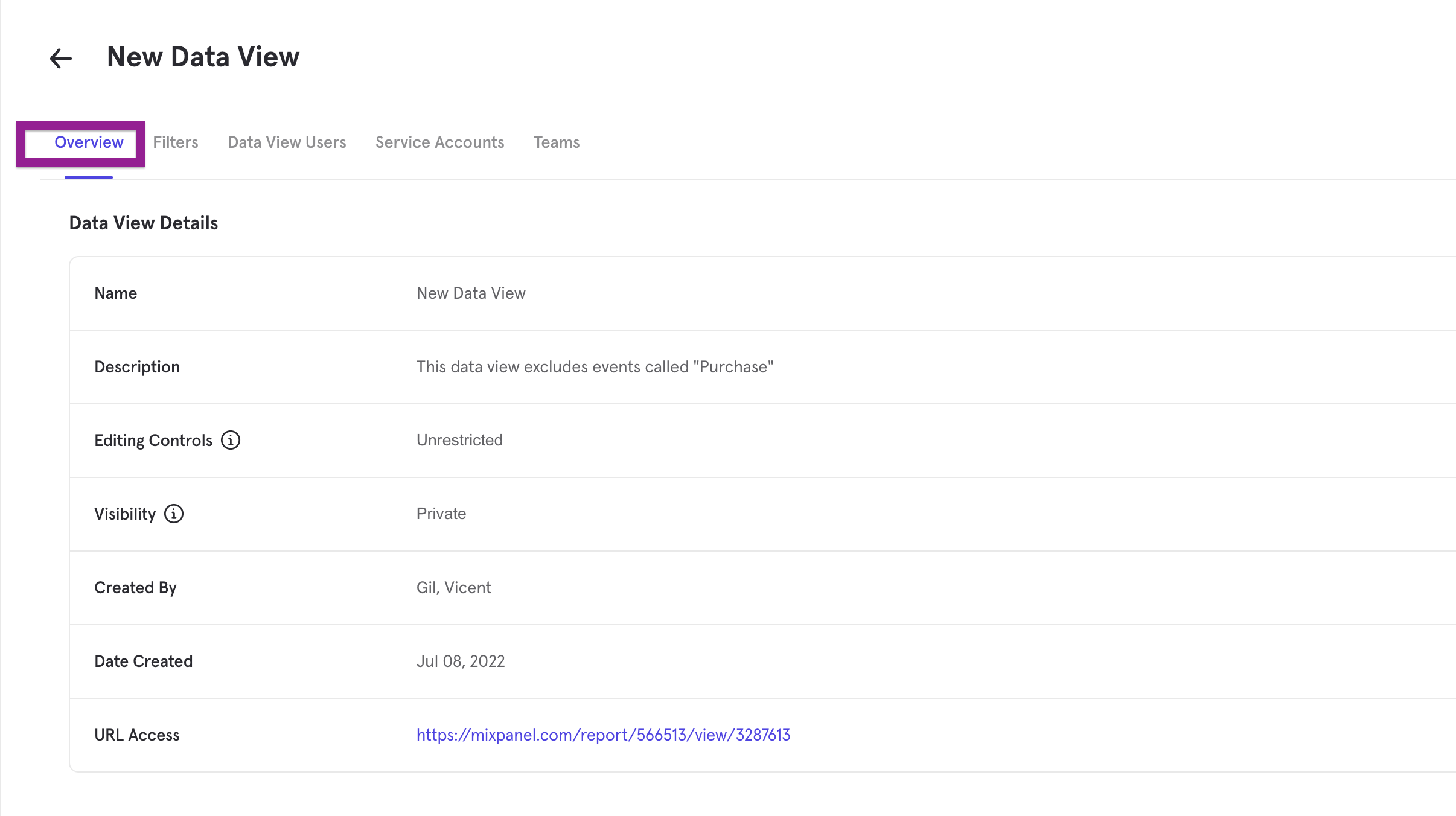
The Overview tab is accessible to all Admins and Owners in the project, and displays details about the data view, including the name, description, editing controls, visibility, creator name, date created, and URL to access it. Editing Controls settings:- Select Restricted to prevent other Admins from editing the data view settings and filters.
- Select Unrestricted to allow Admins to edit the view’s settings and filters.
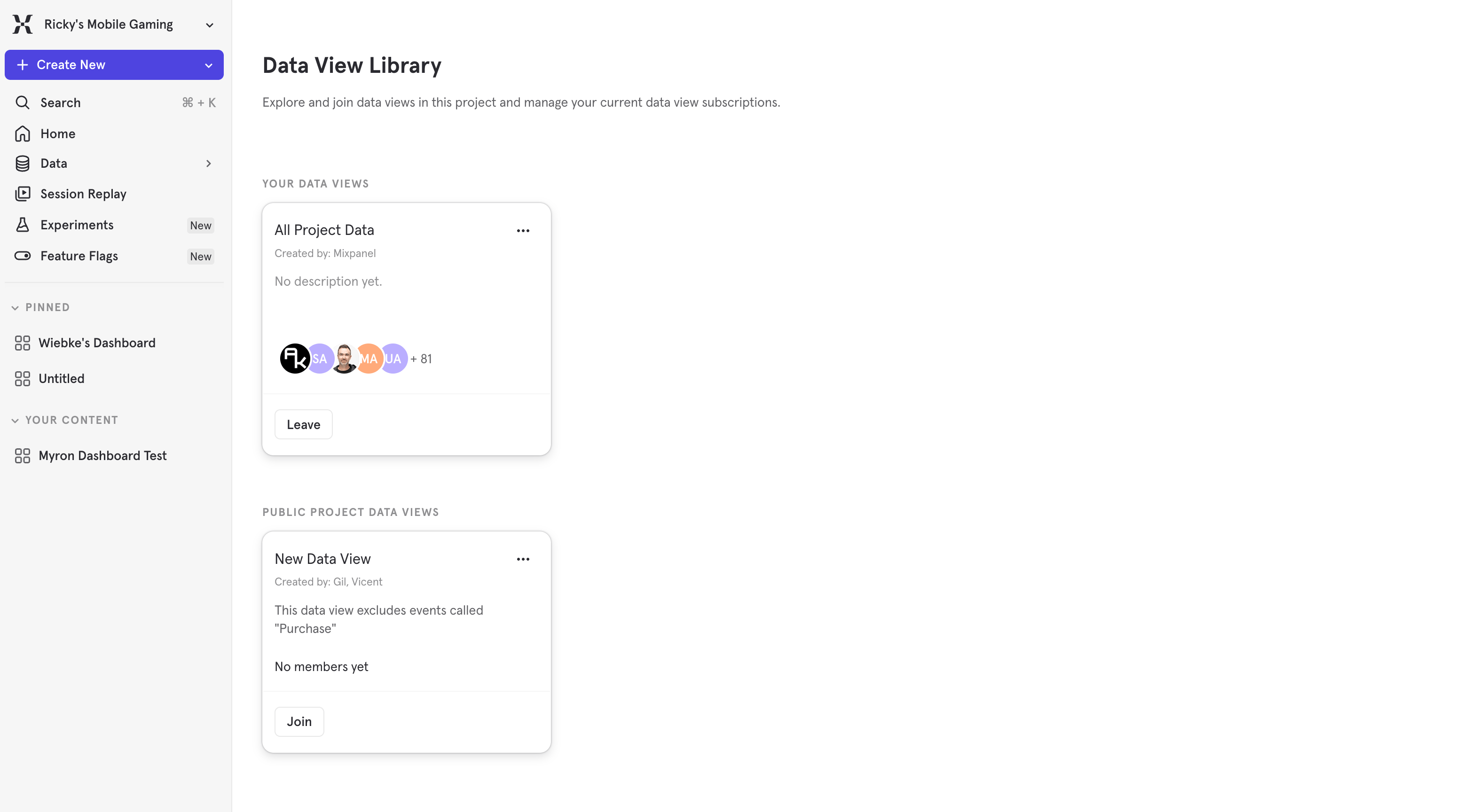
- Select Public to allow project members to discover your data view in the Data View library. All project members can also self-join a data view that is public.
- Select Private to prevent project members from seeing your data view in the library and self-joining. Project members who are added to a private data view will be able to see it.
Manage Data View Filters
Filters determine what data is accessible within a data view.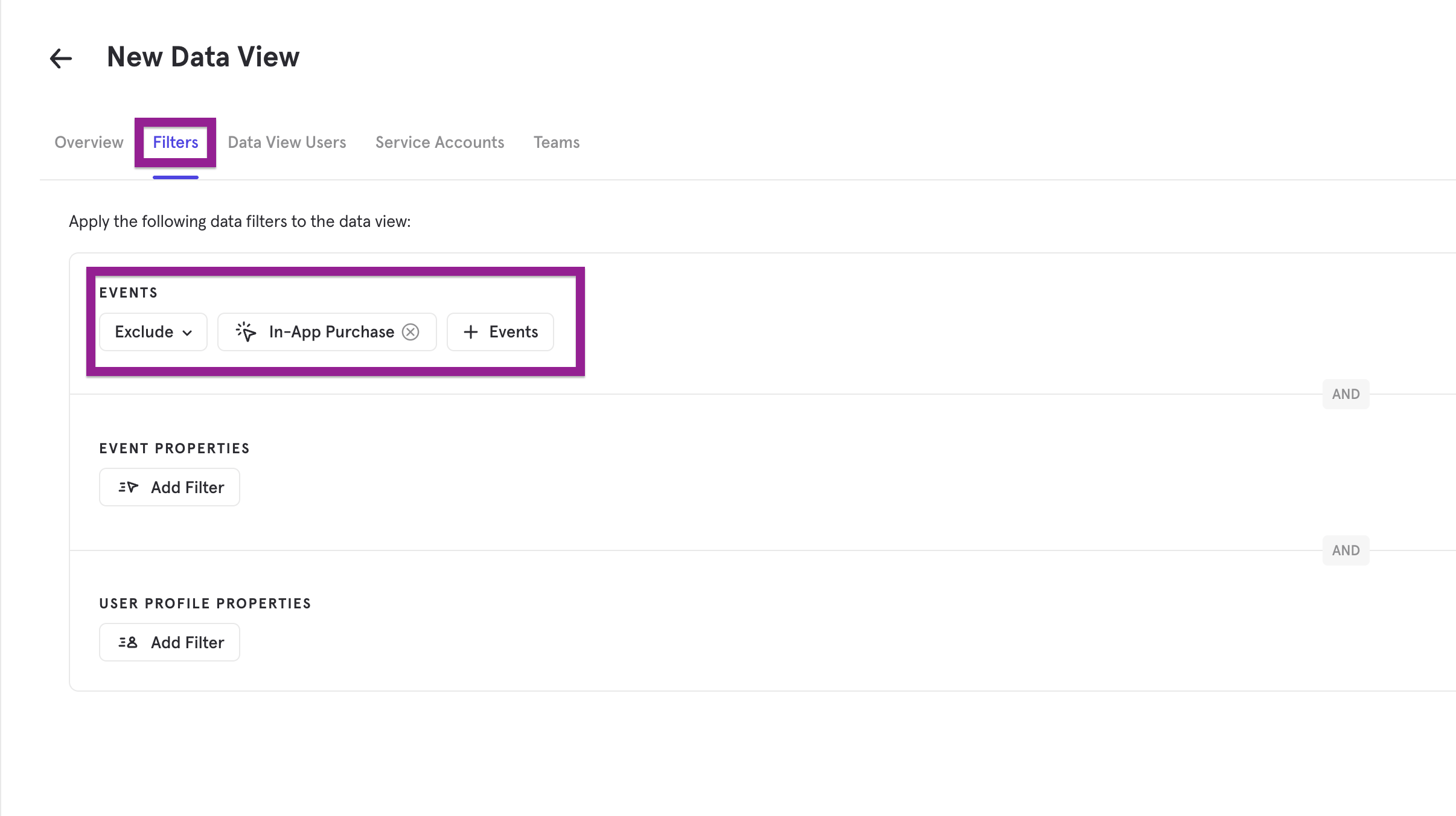
Add Users or Teams
Click + Add User to add individual project members to your data view. The modal only shows users that are part of your project. You can remove users from your data view by selecting the box next to their name and clicking Remove to the left above the user list. Click on the Teams tab to add or remove teams from a data view. Add a team to a data view to indicate that any project member in the team should have access to it. If you set up your Identity Provider to connect to Mixpanel with Single Sign-On, you can define which project members are assigned to which teams. If you set up certain teams with access to specific projects and data views, you can streamline your member onboarding to a Mixpanel project. This helps control who has access to what data at scale.Data View Library
Click on the name of your project in the upper-left corner, and then on “Data View Library”. This option allows you to see the data views you have joined, to create new data views, and to join other public views. Private data views that you have not been invited to will not show up here.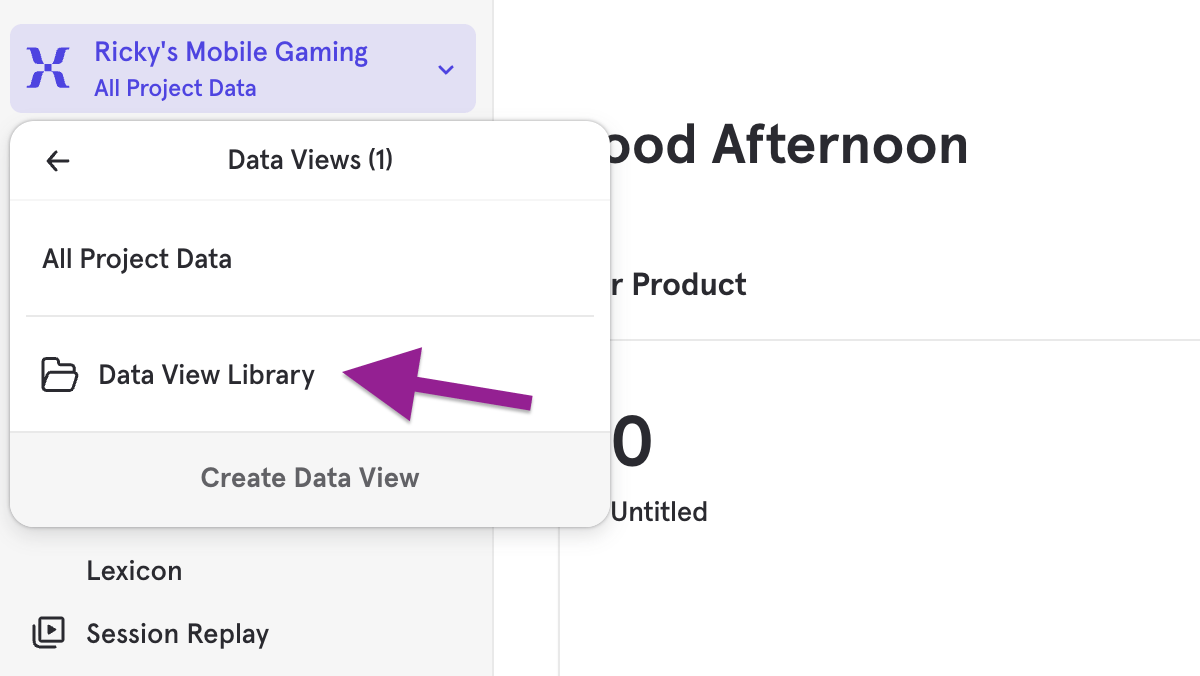
Experience Data Views as a User
You can see the name of the data view that you are currently in by looking at the upper-left corner next to the project name. A message banner will also notify you when you enter a data view if it has a filter.Saved Content in Data Views
The saved content you create in Mixpanel is not contained to the data view in which it was created. For example, you can view a report you made in one data view in any of the other views you have access to. The results of a report or board will change depending on the data view you have selected.Data Views Limits
The following are limitations to be aware of when using data views:- JQL features are only available in the ‘All Project Data’ data view.
- Any Mixpanel APIs that use Project Token or Secret (e.g., Export API) work at a project level and not at the data view level. That said, any APIs that use OAuth (e.g., Query API) do work at the data view level.
- Lexicon shows events and properties filtered based on the data view you have selected. However, if you edit an event or property in Lexicon in one data view, the changes will persist across the project. All data views will be impacted.
- Applying any user profile property filter will remove the ability to analyze by all group identifiers except user.
Data Classification
Please see the Changes to Classified Data Access section in the Roles & Permissions article for the latest information about marking and managing properties and user access to them.
Analysis Experience for Users who Cannot View Properties Marked as Classified Data
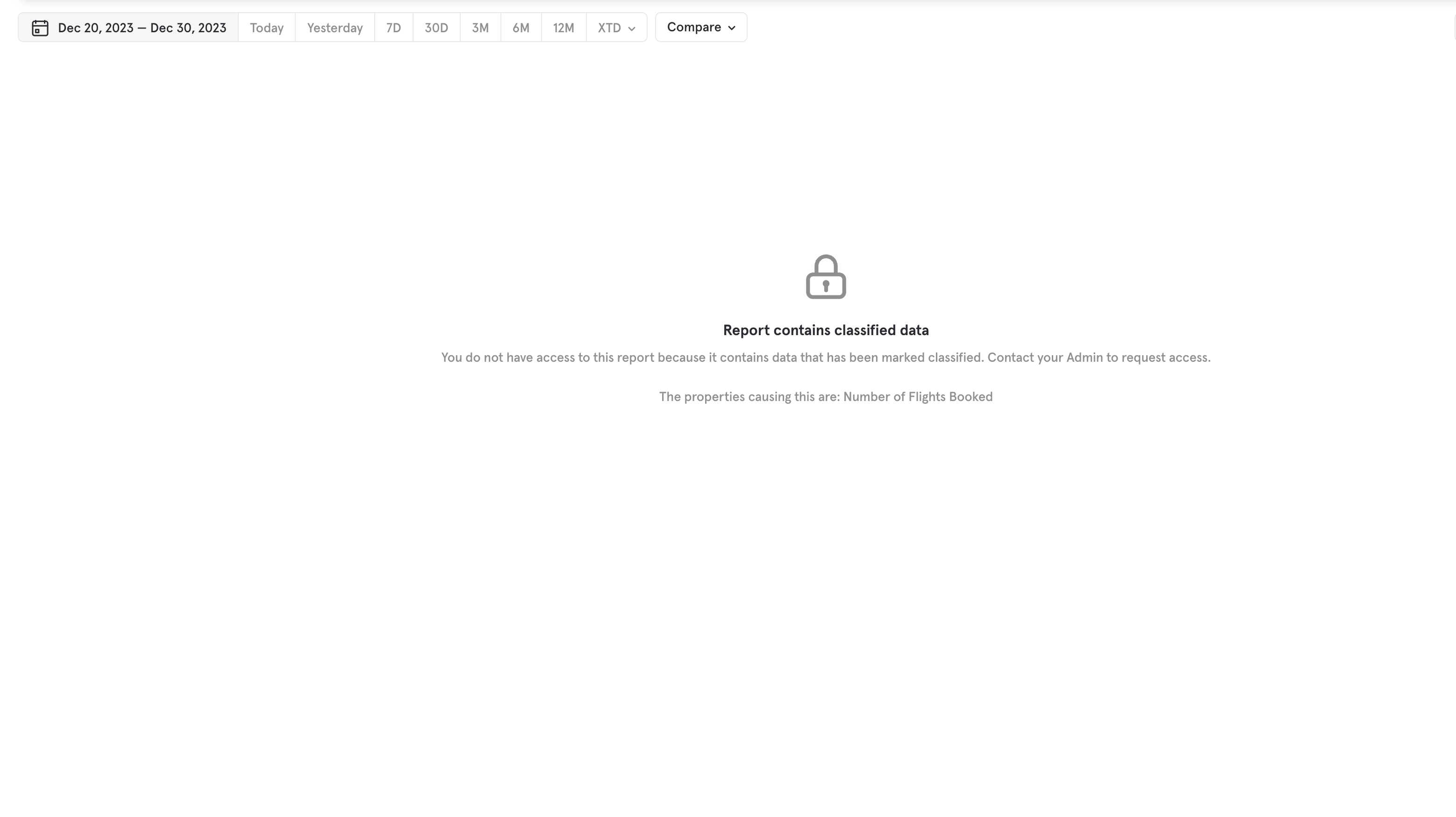
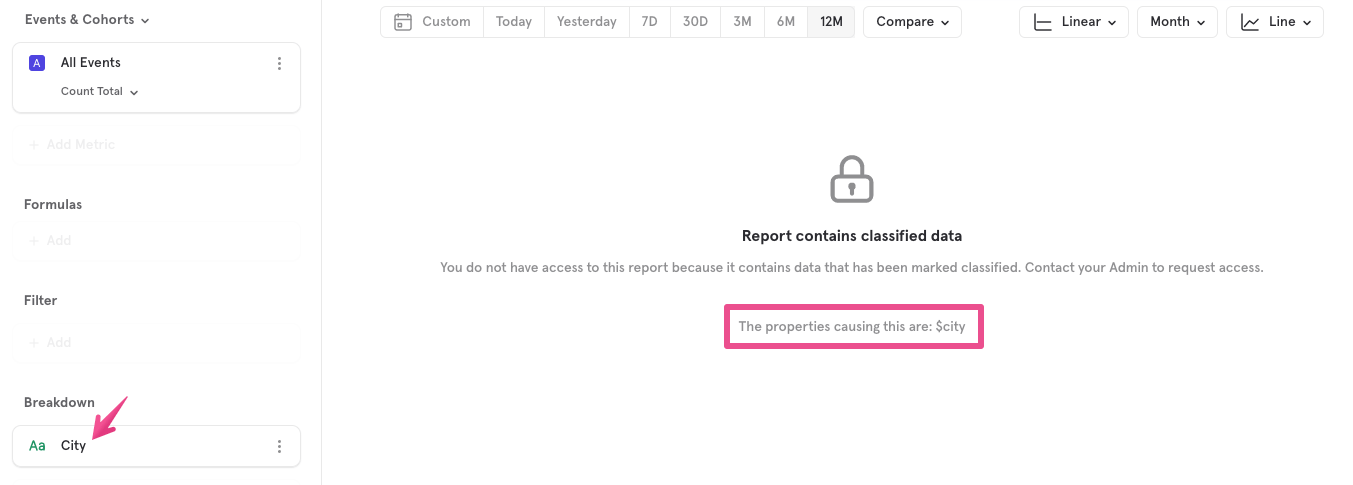
Users who can’t view classified properties can see which specific properties are marked as classified in Lexicon. Users who can’t view properties marked as Classified Data cannot use such properties as filters or breakdowns. Boards If a report contains a classified event or property and a user without the ‘Can View’ option tries to open it, they will see the following warning: